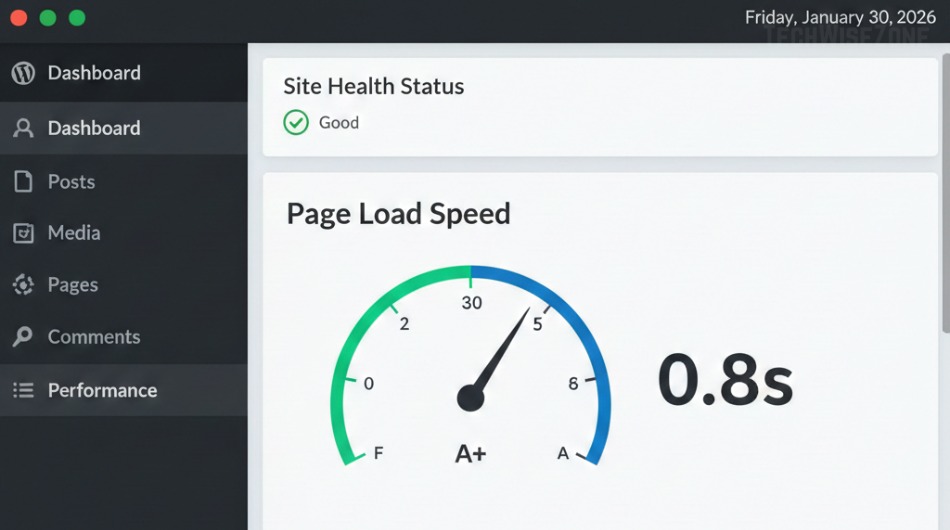
Is your WordPress website slow or struggling to rank high on search engines? Many site owners face this problem, but the good news is that simple optimization tips can make a big difference. In this blog, we’ll cover the best WordPress website optimization tips that improve speed, boost SEO, and enhance user experience. By following these practical steps, your website will not only load faster but also attract more visitors.
Choose a Lightweight WordPress Theme
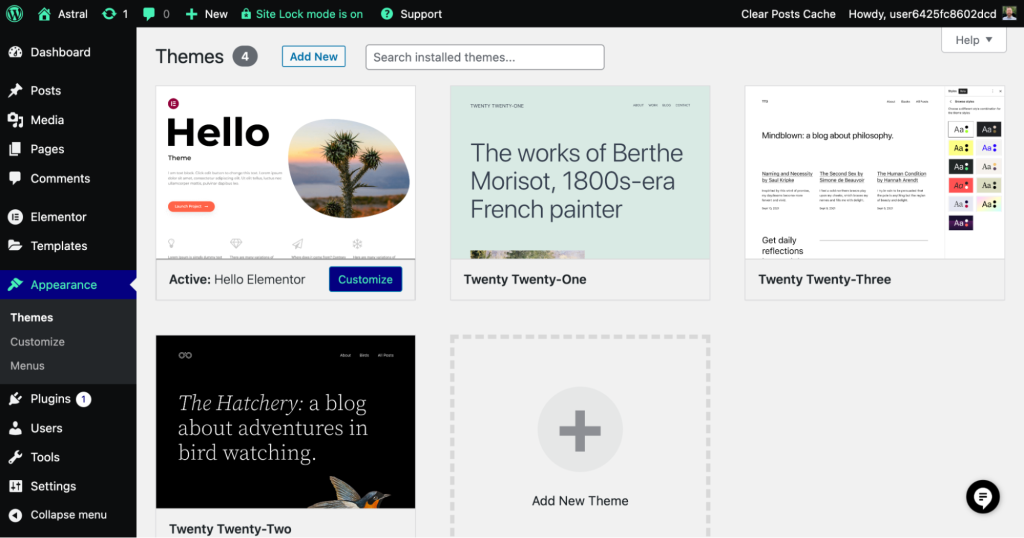
The theme you choose can dramatically affect your site’s speed. Lightweight themes like Astra or GeneratePress are optimized for performance and SEO. Avoid themes with heavy built-in features that you won’t use.
Example: Using GeneratePress reduced page load times on a test site by 1.2 seconds.
Use a Caching Plugin
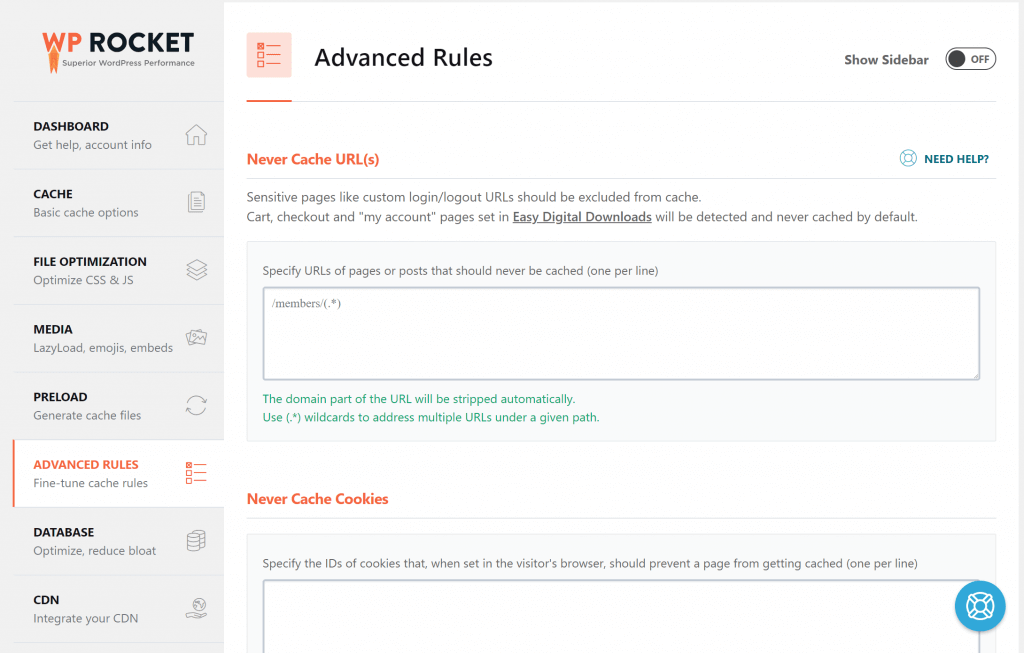
Caching plugins like WP Rocket or W3 Total Cache store static versions of your pages so they load faster for visitors. This reduces server load and increases speed on repeated visits.
Pro tip: Combine caching with a CDN for even better results.
Optimize Images for Web
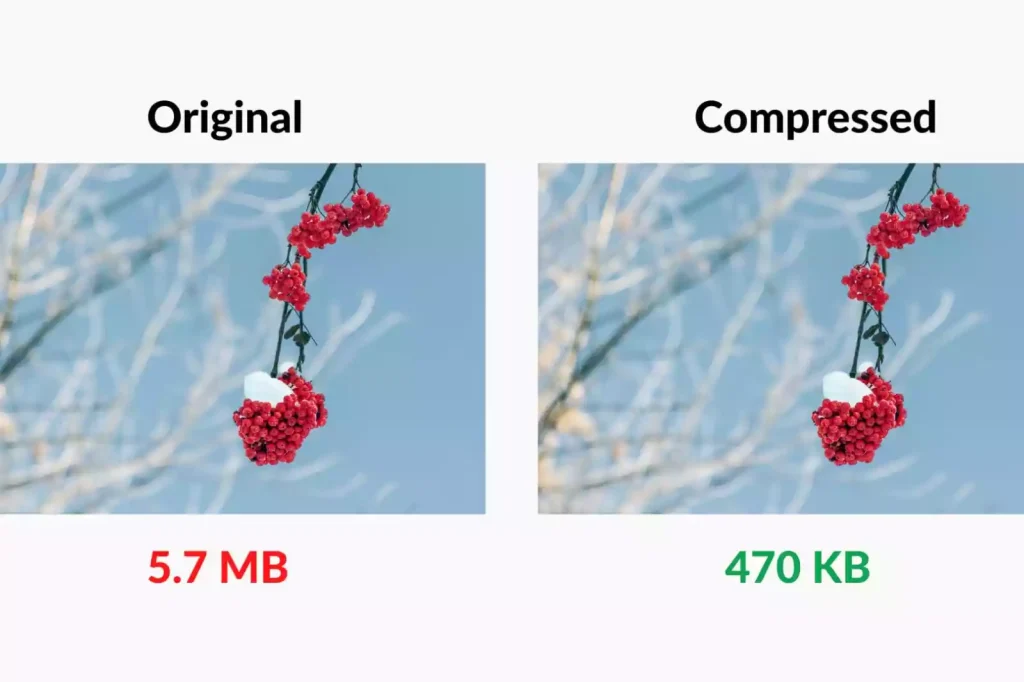
Large images can slow your site. Use compressed images in formats like WebP or JPEG. Plugins like Smush or Imagify automatically optimize images when uploaded.
Example: Compressing 1MB images to 200KB can cut page load time by 40%.
Minimize Plugins and Scripts
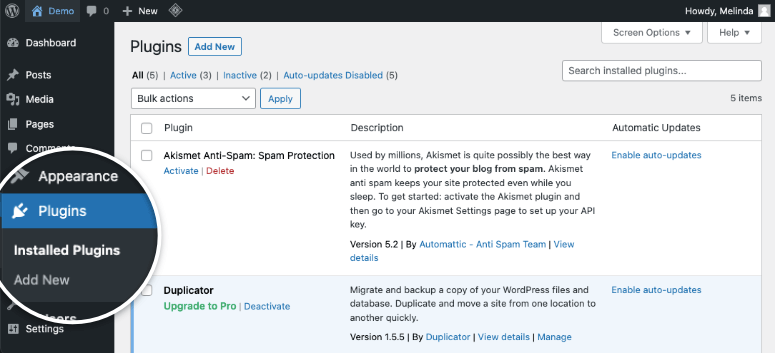
Too many plugins can slow down your website. Only use essential plugins and delete inactive plugins. Also, combine and minify CSS and JavaScript files using plugins like Autoptimize.
Tip: Less is more focus on quality, not quantity.
Use a Content Delivery Network (CDN)
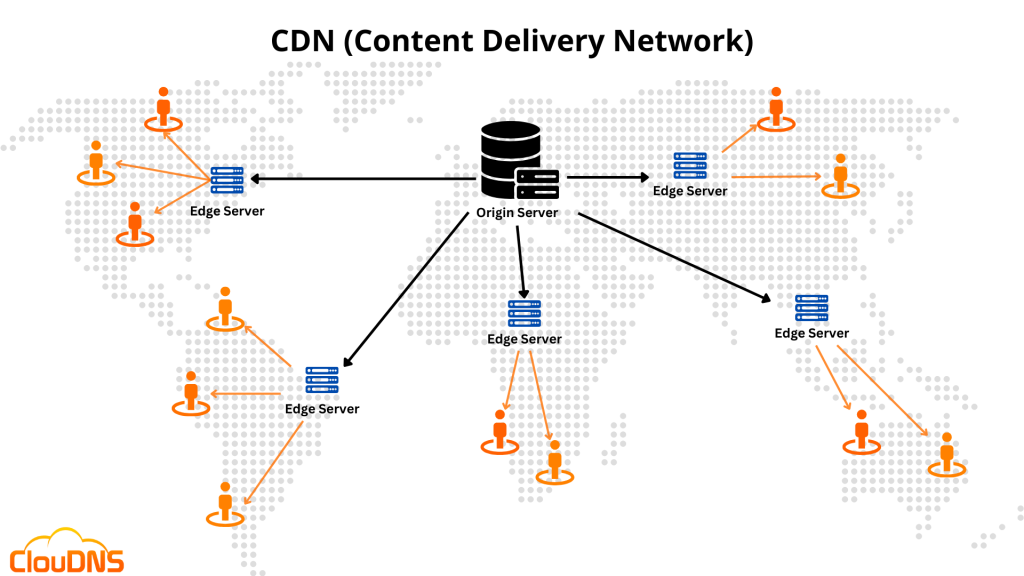
A CDN stores copies of your website on servers worldwide, reducing latency and speeding up page load for visitors far from your server. Popular options include Cloudflare and StackPath.
Enable Lazy Loading
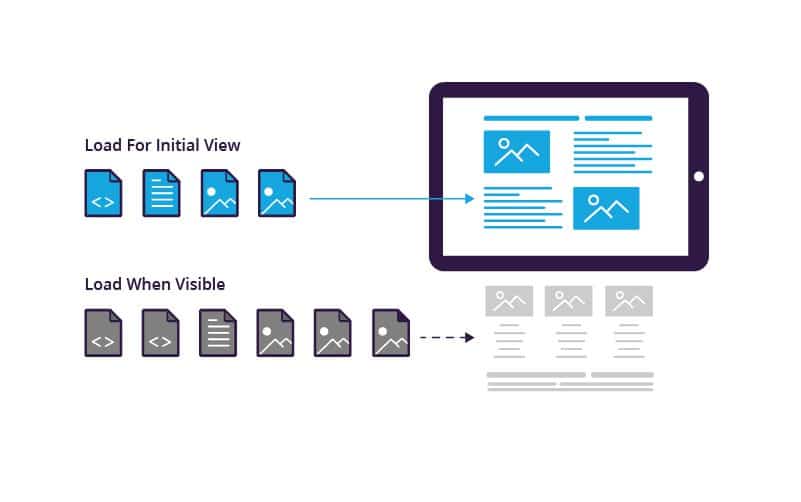
Lazy loading delays images and videos from loading until they are visible on the screen. WordPress 5.5+ has built-in lazy loading, but plugins like Lazy Load by WP Rocket can enhance it.
Optimize Database Regularly
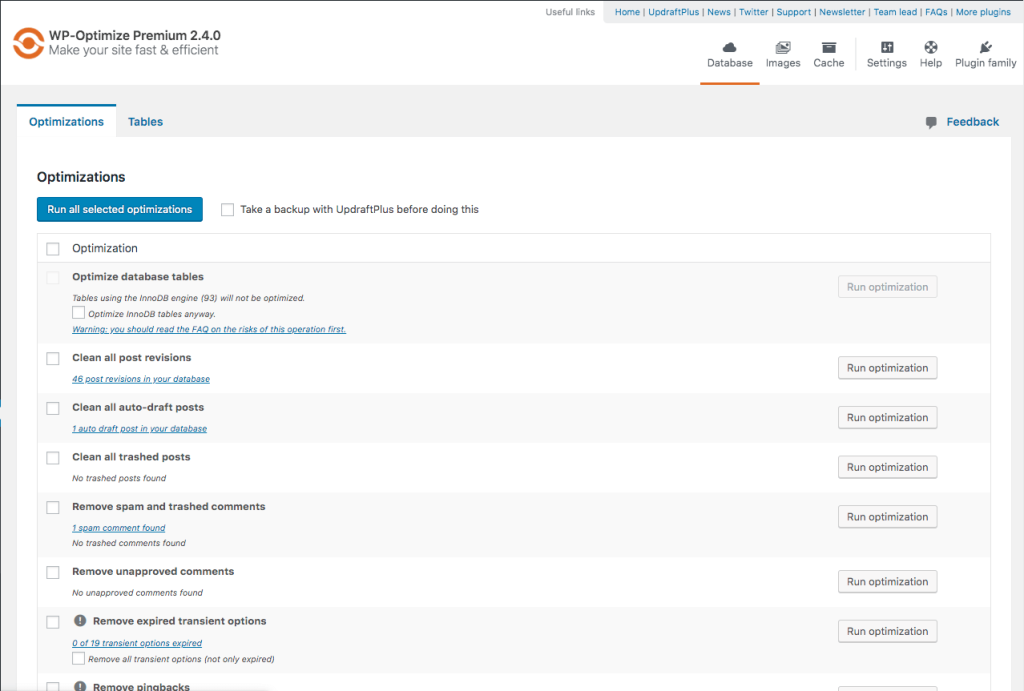
Over time, your WordPress database accumulates unnecessary data like revisions and spam comments. Use plugins like WP-Optimize to clean up your database and reduce load times.
Keep WordPress, Themes, and Plugins Updated
Updates are not just for features—they fix security issues and improve performance. Always backup your website before updating.
Implement GZIP Compression
GZIP compression reduces file sizes sent from your server to visitors, improving load times. Most caching plugins allow you to enable it with a single click.
Monitor and Test Website Speed
Regularly check your site speed with tools like Google PageSpeed Insights, GTmetrix, or Pingdom. This helps identify bottlenecks and ensures ongoing optimization.
Conclusion
Optimizing your WordPress website doesn’t have to be complicated. By following these 10 best optimization tips for WordPress website, you can improve speed, SEO, and user experience. Start with a lightweight theme, optimize images, and use caching and a CDN for the biggest impact.
Try these tips today and watch your WordPress website perform faster and rank higher!