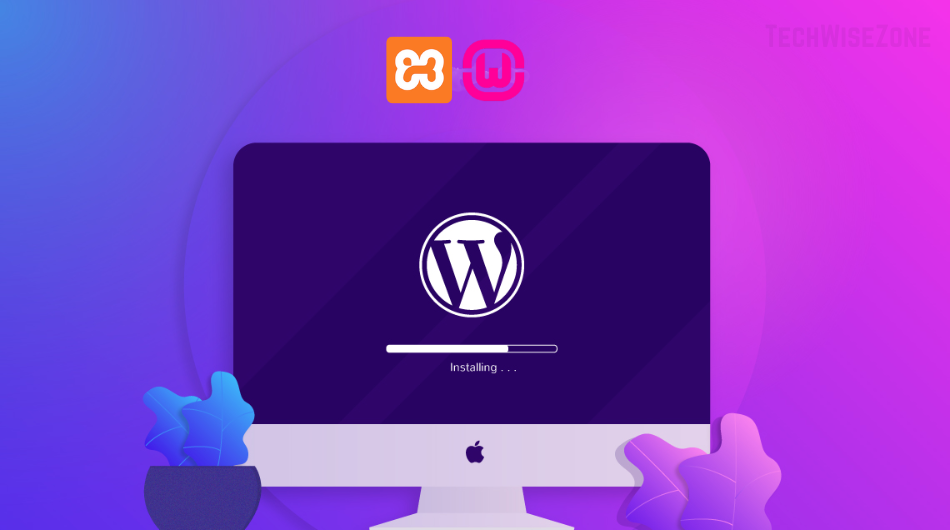
Creating a WordPress website for free on localhost is simple and fast. Localhost lets you build and test your website offline without spending a single dollar. In this guide, you will learn step by step how to set up a WordPress website on your computer.
What is Localhost and Why Use It?
Localhost is a server environment that runs on your computer. Using it has several advantages:
-
Safe Testing: Test your website offline without affecting a live site.
-
Faster Development: Files load directly from your computer, making it faster.
-
Free: No need to pay for hosting or domain while developing.
Step 1: Install a Local Server (XAMPP/WAMP)
To run WordPress on localhost, you need a server software:
-
Download XAMPP: Get it from Apache Friends.
-
Install XAMPP: Follow the installer and select Apache + MySQL modules.
-
Start Modules: Open XAMPP Control Panel and start Apache and MySQL.
Tip: You can also use WAMP, which works similarly.
Step 2: Download WordPress
Next, download WordPress to your computer:
-
Go to WordPress.org and download the latest version.
-
Extract the zip file and copy it to XAMPP’s
htdocsfolder. -
Rename the folder to your site’s name, e.g.,
mywebsite.
Step 3: Create a Database for WordPress
WordPress needs a database to run:
-
Open your browser and go to
localhost/phpmyadmin. -
Click New Database and enter a name, e.g.,
mywebsite_db. -
Select collation
utf8_general_ciand click Create.
Note: Default XAMPP database username is
rootand password is blank.
Step 4: Install WordPress on Localhost
Now, install WordPress:
-
Open your browser and type
localhost/mywebsite. -
Select your language and click Continue.
-
Fill in database details:
-
Database Name:
mywebsite_db -
Username:
root -
Password: (leave blank)
-
Database Host:
localhost
-
-
Run the install and enter site details like Site Title, Username, and Password.
Your WordPress website is ready! You can now add themes, plugins, and content.
Step 5: Customize and Test Your Website
On localhost, you can fully customize your website:
-
Install Themes to change the design.
-
Add Plugins to enhance functionality.
-
Test content, links, and images thoroughly.
Tip: Once satisfied, you can migrate your localhost website to a live server.